High quality
Use 85–95 when subtle texture matters and a moderate reduction is enough.
Reduce file size while preserving the original dimensions and format, then compare the exact result before downloading.
Choose a JPEG, PNG, WebP, or AVIF. The image is re-encoded locally without changing its dimensions or format.
Processed privatelyJPEG, PNG, WebP, or AVIFUp to 75 MB
Image bytes stay on your device. Compression does not require an account or server upload.
The output keeps the decoded width, height, orientation, and format of the source image.
JPEG and WebP work broadly. AVIF output appears only when your browser can encode it reliably.
Unlike metadata cleanup, compression decodes and writes the visible image again. Lower quality can create a smaller file, but it may also reduce fine detail. PNG is re-encoded losslessly. If re-encoding does not reduce file size, the original is kept unchanged.
JPEG is suited to photographs without transparency. PNG preserves transparency with lossless encoding. WebP and AVIF can preserve transparency while using lossy compression, subject to browser encoder support. Animated images are not accepted because browser canvas encoding would flatten their animation.
Choosing a useful result
File size is not a quality score. The best result is the smallest copy that still looks right at the size where people will use it. Compare edges, text, skin texture, and gradients before downloading.
Use 85–95 when subtle texture matters and a moderate reduction is enough.
Try 70–85 for typical web photographs, then inspect the side-by-side preview.
Go below 70 only after checking text, faces, sharp edges, and smooth color transitions.
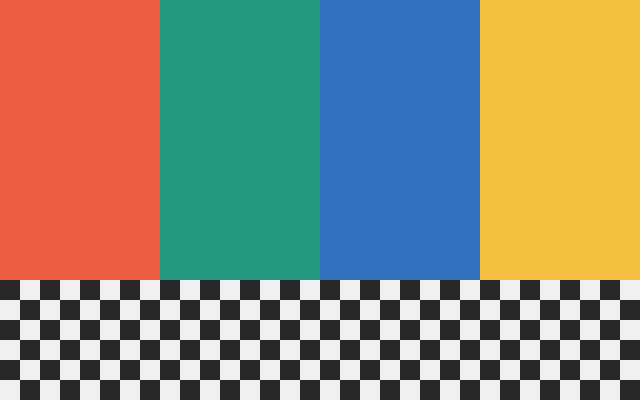
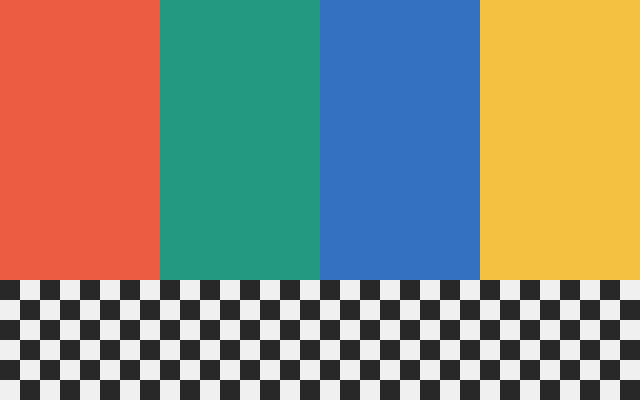
This original 640 x 400 color chart has sharp boundaries and a checker pattern that make JPEG edge artifacts easier to inspect. It is synthetic, not a photograph. Compare JPEG at two quality settings with lossless PNG using the same compressor as the tool above. Measurements are calculated on this device, not estimated savings.
Edge 156 on Windows 10 (browser-reported, reduced version). All outputs were 640 x 400. These are measured results, not guaranteed savings.
The JPEG source is encoded at quality 100 with 4:4:4 chroma sampling. Browser quality scales are not interchangeable with the source encoder. PNG ignores the quality slider. A result that is not smaller keeps the source unchanged. These results do not predict savings for photographs or other browsers.
Compare the downloaded source with each output at the same zoom. Look for ringing around checker boundaries and color bleeding where the bands meet. A lower byte count does not prove acceptable quality. The lossless PNG case may keep the original because the source is already efficiently encoded.
Files are limited to 75 MB, 100 million pixels, and 32,768 pixels per side. AVIF output depends on the browser encoder. Results can differ across browsers because Photo Payload uses the image codecs provided by the device.
Common questions
Start around 80 to 85 for photographs, inspect fine detail in the comparison, and lower it gradually if the file is still too large. Logos, text, and screenshots may show artifacts sooner than natural photos.
A source may already be efficiently compressed. Browser re-encoding, especially lossless PNG encoding, can produce more bytes. Photo Payload discards any equal or larger result and keeps your original unchanged, including its metadata.
No. This tool keeps the decoded width and height. Use the image resizer when fewer pixels are acceptable; reducing dimensions often saves more space than quality changes alone.
A smaller compressed copy does not retain embedded EXIF, GPS, XMP, comments, or Content Credentials. If no smaller copy is produced, the original is kept unchanged with its metadata intact.
No. Animated inputs are rejected because browser canvas encoding would keep only a single frame. Use a dedicated animation-aware editor when motion must be preserved.
Need fewer pixels or another file type? Continue with the tool that matches the actual constraint.